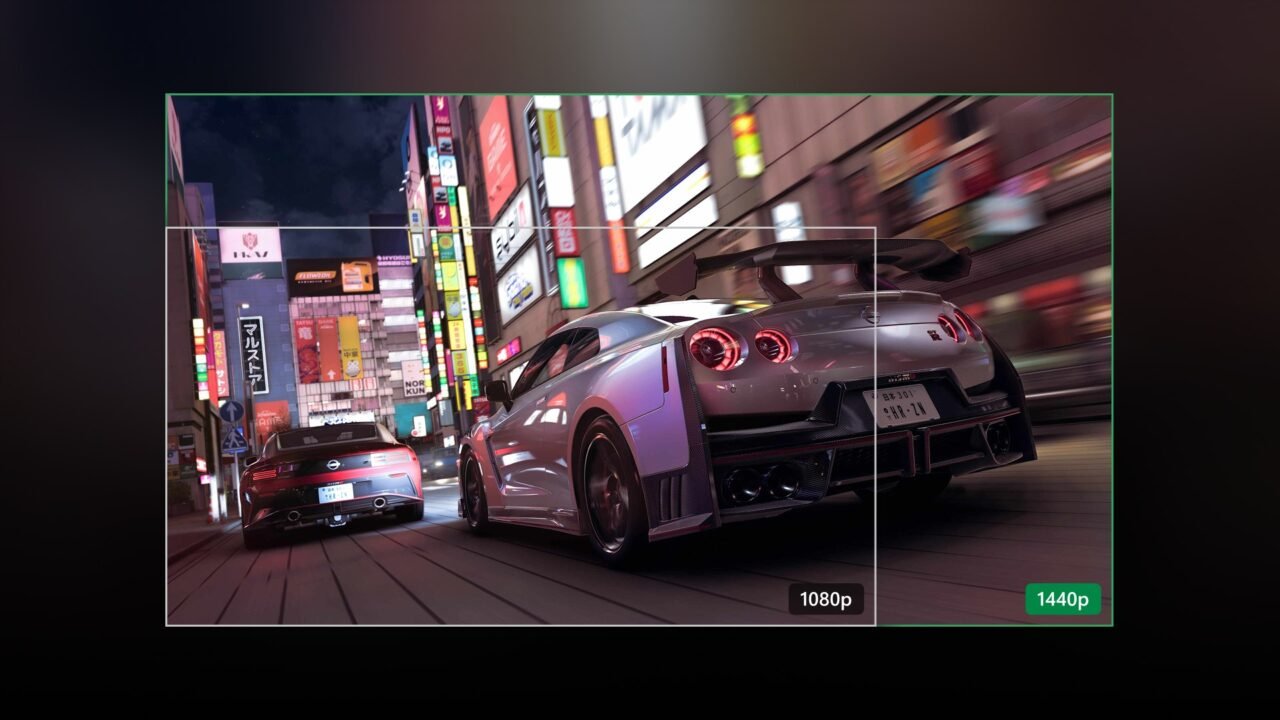
Remote Play lets you stream games from your own Xbox console to a Windows PC, phone, TV or other device. Since the October 2026 Xbox update, Remote Play from Xbox Series X|S supports up to 1440p resolution, with higher video bitrates for sharper, smoother streaming on supported devices. It’s available to all Xbox players with no extra subscription, because it uses the console you already own. Here’s how to set it up and get the higher quality.
What you need for 1440p Remote Play
- An Xbox Series X|S console. 1440p Remote Play streams from Series X|S consoles.
- A supported device. Some devices may not yet get the full improvement.
- An internet connection of 7–10 Mbps. A 5 GHz Wi-Fi network is recommended. 2.4 GHz works but isn’t optimised or recommended.
- An Xbox Wireless Controller connected by Bluetooth or USB cable. Mouse and keyboard and touch aren’t supported for Remote Play.
Step 1: Set your console’s display resolution to 1440p or 4K
If you already use Remote Play, this is the step that unlocks the higher quality.
- Press the Xbox button to open the guide.
- Select Profile & system > Settings > General > TV & display options.
- Set Display resolution to 1440p or 4K UHD.
Step 2: Turn on remote features and Sleep mode
- Press the Xbox button to open the guide.
- Go to Profile & system > Settings > Devices & connections > Remote features.
- Select the Enable remote features checkbox.
- Under Power options, select Sleep.
Remote Play won’t work unless your console’s power mode is set to Sleep.
Step 3: Connect from your device
On a phone or in a web browser:
- Open a supported browser.
- Go to xbox.com/remoteplay.
- Select the console you want to connect to, then select Remote play on this device.
On a Windows PC with the Xbox app:
- Open the Xbox app.
- Select your profile picture, then select View profile.
- Under Where I play, select Add a console and follow the steps.
Leave streaming quality on Auto. Some devices may not yet have separate streaming settings for Xbox Cloud Gaming and Remote Play. If your streaming quality is set to Auto, Remote Play automatically picks the highest resolution and bitrate your device and connection can handle, whatever resolution the setting shows.
Troubleshooting Remote Play
If you see “Stream Connection Lost”, “Try again in a while: We can’t stream from your console right now” or “Can’t connect to console”, try these:
- Check the Xbox status page.
- Make sure you’re signed in with the same account you used to enable Remote Play on your console.
- Turn on the console and check for updates. Our guide on how to update your Xbox covers this.
- Check Enable remote features is ticked and the console is set to Sleep.
- Restart your console: hold the Xbox button on your controller and select Restart console > Restart.
- Restart the device you’re streaming to.
Remote Play didn’t work at 720p
The February 2026 update fixed a bug that stopped some players using Remote Play when their console’s display resolution was set to 720p.
The picture looks dim or dark
If your console is connected to an HDR display, the game may be running in HDR, which Remote Play doesn’t support. Close and relaunch the game from within the stream. If that doesn’t help, go to Settings > General > TV & display options > Video modes and clear Allow HDR10.
Can I play backward compatible games?
Not at the moment. Backward compatible games can’t be played through Remote Play, and you may see error 0x87e10004.
For more help, see Troubleshoot remote play gaming or the Xbox Remote Play page.