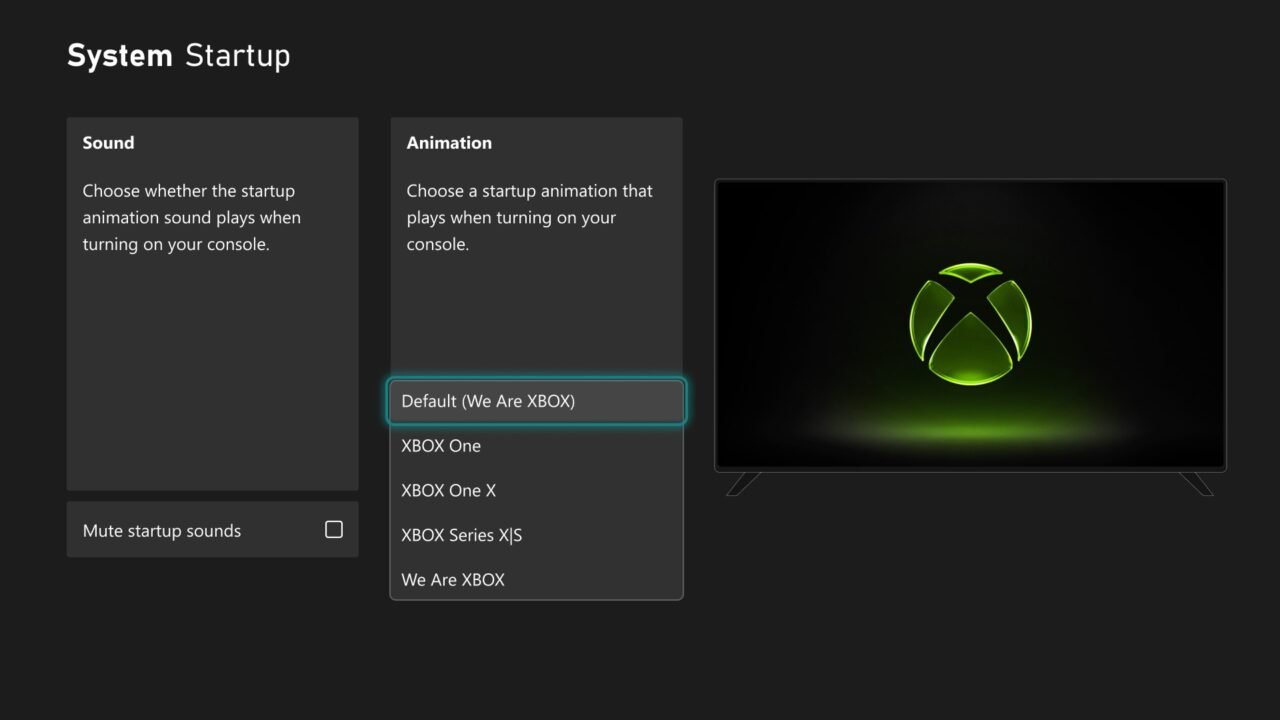
Since the October 2026 Xbox update, you can choose which startup animation plays when you turn on your console, with options from Xbox One through to the latest generation. The same screen also lets you choose whether the animation plays with or without sound. Here’s where to find it, and how to make sure you actually see the animation each time you switch on.
How to change the startup animation on Xbox
- Press the Xbox button on your controller to open the guide.
- Select Profile & system > Settings.
- Go to System > Startup.
- Under Animation, choose the startup animation you want.
The options shown in Xbox’s own screenshot of the screen are Default (We Are Xbox), Xbox One, Xbox One X, Xbox Series X|S and We Are Xbox. A preview of the selected animation appears alongside the list.
How to turn the startup sound on or off
The setting that plays the startup animation without sound has moved to the same page.
- Go to Profile & system > Settings > System > Startup.
- Under Sound, tick or untick Mute startup sounds.
Not seeing Startup in Settings? The animation picker arrived with the October 2026 update. Check you’re up to date with our guide on how to update your Xbox.
Why don’t I see the startup animation every time?
If your console is set to Sleep, it doesn’t fully turn off, so it wakes up without playing the full startup animation. To see the animation every time you turn on your console, set it to Shutdown (energy saving) mode:
- Press the Xbox button to open the guide.
- Select Profile & system > Settings > General > Power options.
- Select Shutdown (energy saving).
Things to know about the two power modes:
- Shutdown (energy saving) fully shuts the console down and uses the least power. It still supports automatic updates for the console, games and apps. Start-up can take up to 45 seconds, and you need to press the Xbox button on the console or controller to turn it on.
- Sleep uses more power but starts up faster. It’s needed for remote wake and fast boot, and also supports automatic updates.
There’s more detail on each mode in About power options on Xbox One and Xbox Series X|S.
Other power settings worth knowing
From the same power menu, you can also choose to turn the console off after a period of inactivity, how you want to wake your Xbox, and other options:
- Press the Xbox button to open the guide.
- Select Profile & system > Settings > General > Power options > Customise power options.
- Choose the options you want.
By default, the console’s inactivity timer is set to 20 minutes, and you can change it at any time.
FAQ
Is this the same as the new startup animation from June?
The June 2026 system update brought an updated and improved startup animation. The October 2026 update added the ability to pick an older animation instead.
Which consoles get the startup animation choice?
The setting is part of the October 2026 system update for Xbox consoles. The animation options span from Xbox One to the latest generation.
Can I turn the animation off completely?
No official option to remove the animation altogether has been documented. You can mute its sound, and Sleep mode skips it when the console wakes.