Xbox Cloud Gaming on your console now gives you more control over streaming quality. The April 2026 Xbox update added a resolution choice and a network quality indicator, and the October 2026 update lets downloads keep going in the background while you stream. Here’s where to find each setting on Xbox Series X|S and Xbox One.
How to choose your cloud gaming resolution
Before you start streaming, you can pick your preferred resolution in your console’s cloud gaming settings.
- Press the Xbox button to open the guide.
- Select Profile & system > Settings > Cloud gaming.
- Choose your preferred resolution.
Even with a resolution chosen, Xbox Cloud Gaming adjusts resolution, bitrate and frame rate during a session. They depend on the game, the quality of your internet connection, your device’s screen and how quickly it can decode the stream. Resolution can also vary depending on whether you have Game Pass and which plan you’re on.
How to turn on the network quality indicator
The network quality indicator shows warning icons when your connection may affect the stream.
- Press the Xbox button to open the guide.
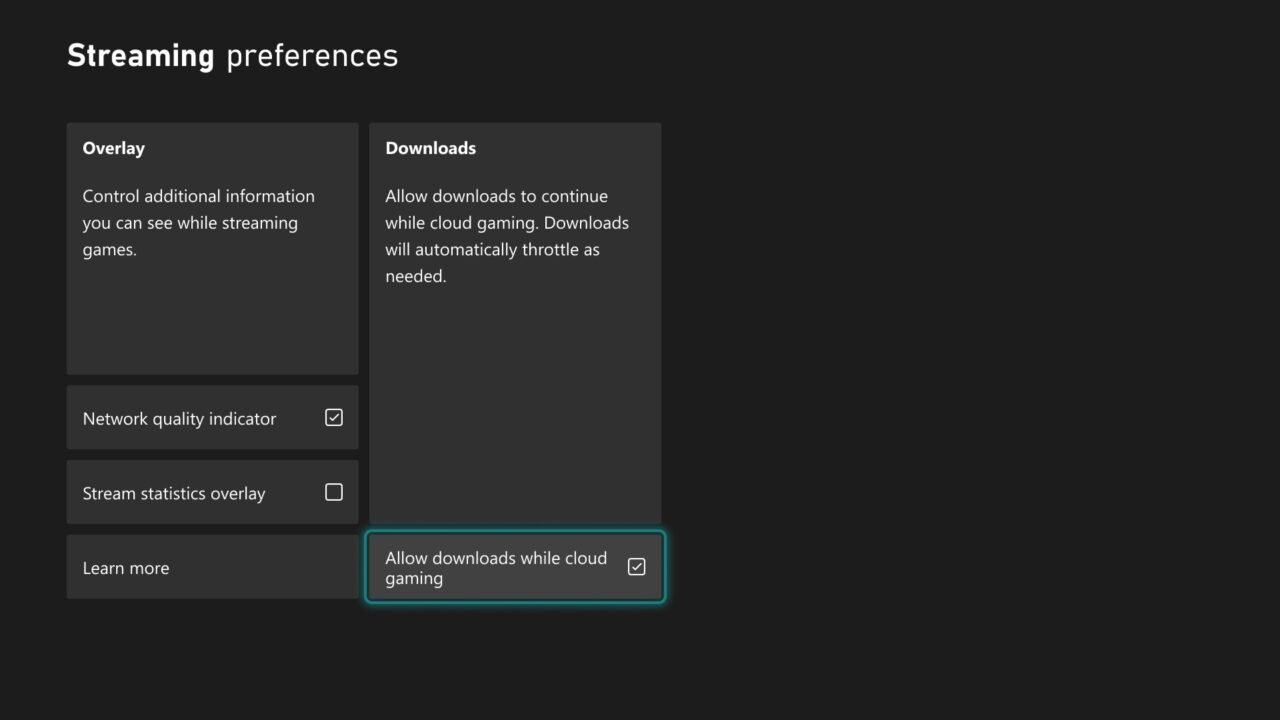
- Go to Profile & system > Settings > Cloud gaming > Streaming preferences.
- Tick Network quality indicator.
On the same screen, tick Stream statistics overlay to see live figures while you play. Useful targets are below 80ms ping, below 20ms jitter, below 12ms decode time and 0% packet loss, with 30–60 FPS depending on the game.
How to download games in the background while cloud gaming
When network conditions allow, downloads now carry on in the background while you stream, so you spend less time waiting. Xbox Series X|S consoles see the biggest gains. It’s on by default, and you can turn it off at any time:
- Press the Xbox button to open the guide.
- Go to Profile & system > Settings > Cloud gaming > Streaming preferences.
- Under Downloads, tick or untick Allow downloads while cloud gaming.
Since August 2026, you can also stream a game with cloud gaming while it updates on your console.
Cloud games now appear in your library. Games you play through Xbox Cloud Gaming are added automatically to the Games section of My games & apps. To remove one, highlight it and press the Menu button.
Tips for a better stream
- Use a wired Ethernet connection if you can. If you’re on Wi-Fi, use a 5 GHz network. 20 Mbps or higher is recommended.
- Switch your TV to game mode or its best performance mode.
- Keep your console’s software up to date. Our guide on how to update your Xbox explains how.
- Avoid mobile hotspots, Wi-Fi extenders and other heavy streaming or gaming on the same network.
- Give your console plenty of airflow so it doesn’t overheat.
FAQ
Which Game Pass plans include cloud gaming?
Cloud gaming works with Xbox Game Pass, but PC Game Pass doesn’t include it. For how much you can play on each plan, see our Xbox Cloud Gaming playtime guide.
Can I play local multiplayer through cloud gaming?
No. Cloud gaming on console supports one player and one account at a time.
For more, see Cloud gaming on your Xbox console.