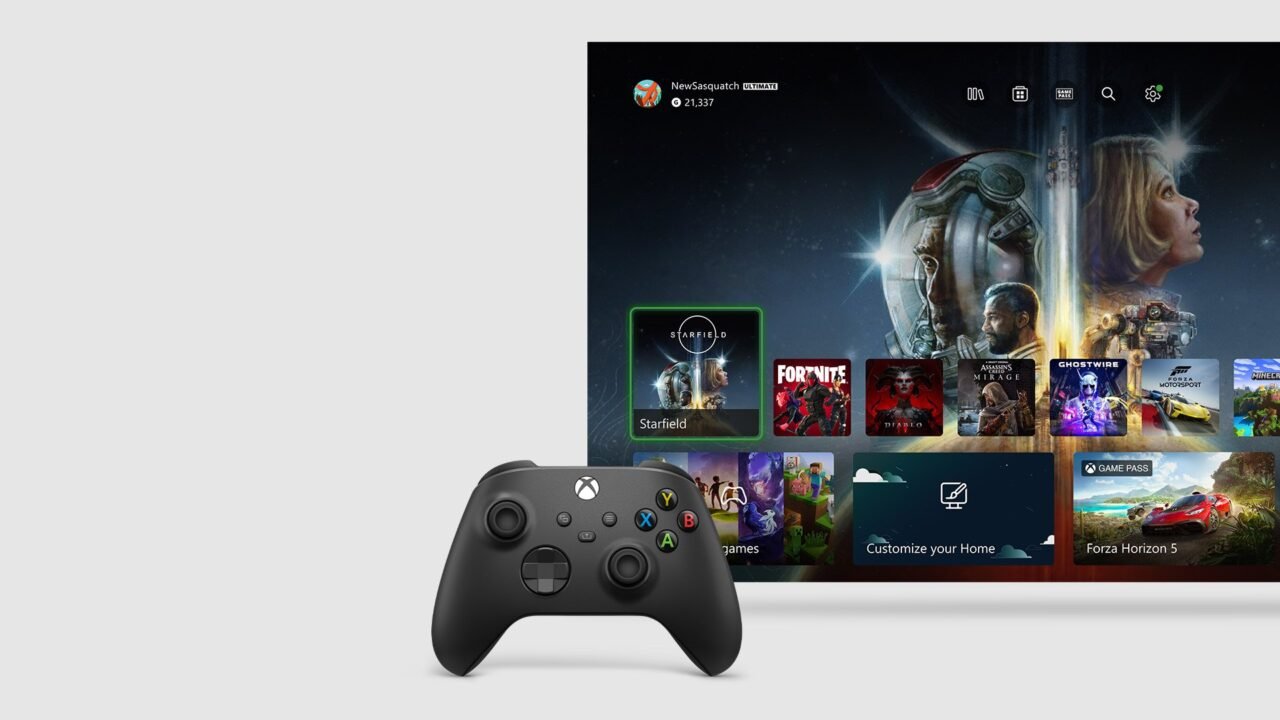
If your Xbox is running slowly, a game keeps crashing or something just isn’t working, clearing the cache is often the first fix people suggest. Xbox doesn’t have a single “clear cache” button, though. The official equivalent is to fully restart or power cycle the console, which reboots it completely and fixes many common issues without erasing any of your games or data. Here’s how to do it properly on Xbox Series X|S and Xbox One.
Option 1: Restart from the Power Centre
- Press and hold the Xbox button in the centre of your controller to open the Power Centre.
- Select Restart console.
- Select Restart.
You can also restart from the guide: go to Profile & system > Settings > General > Power options and select Restart now.
Option 2: Physically power cycle the console
Use this if the console seems frozen, or a normal restart didn’t help.
- Hold the Xbox button on the front of the console for about 10 seconds until it turns off.
- Turn it back on with the Xbox button on the console or on your controller.
If you don’t see the green boot-up animation when it starts again, repeat these steps. Make sure you hold the button until the console shuts down completely.
Option 3: Unplug the power cable
This is the most thorough option, because it also resets the power supply.
- Hold the Xbox button on the front of the console for about 10 seconds until it shuts down completely.
- Unplug the console’s power cable and wait at least 10 seconds.
- Plug the power cable back in.
- Press the Xbox button on the console to turn it on.
Using Sleep mode? Holding the power button shuts the console down fully. Sleep mode, and turning the console on by saying “Xbox on”, won’t work again until you restart the console. You can choose between Sleep and Shutdown (energy saving) in Profile & system > Settings > General > Power options.
Clear Blu-ray persistent storage
The one setting Xbox describes as clearing cached data is for the Blu-ray player. If you have problems with Blu-ray films, you can clear Blu-ray-specific data that’s been cached to the console:
- Press the Xbox button to open the guide.
- Go to Profile & system > Settings > Devices & connections > Blu-ray.
- Select Persistent storage and clear it.
Xbox Series S and Xbox One S All-Digital Edition don’t have disc drives, so this doesn’t apply to them.
Other things to try
- Delete local saves for one game. If a single game is misbehaving, you can remove its saved data from the console and let it sync back from the cloud. See how to delete local saves on Xbox.
- Check for updates. Make sure the console is up to date with our guide on how to update your Xbox.
- Reset the console. As a last resort, a factory reset can keep your games installed. See how to factory reset your Xbox and keep your games.
FAQ
Will power cycling delete my games or saves?
No. Restarting or power cycling doesn’t erase any of your games or data.