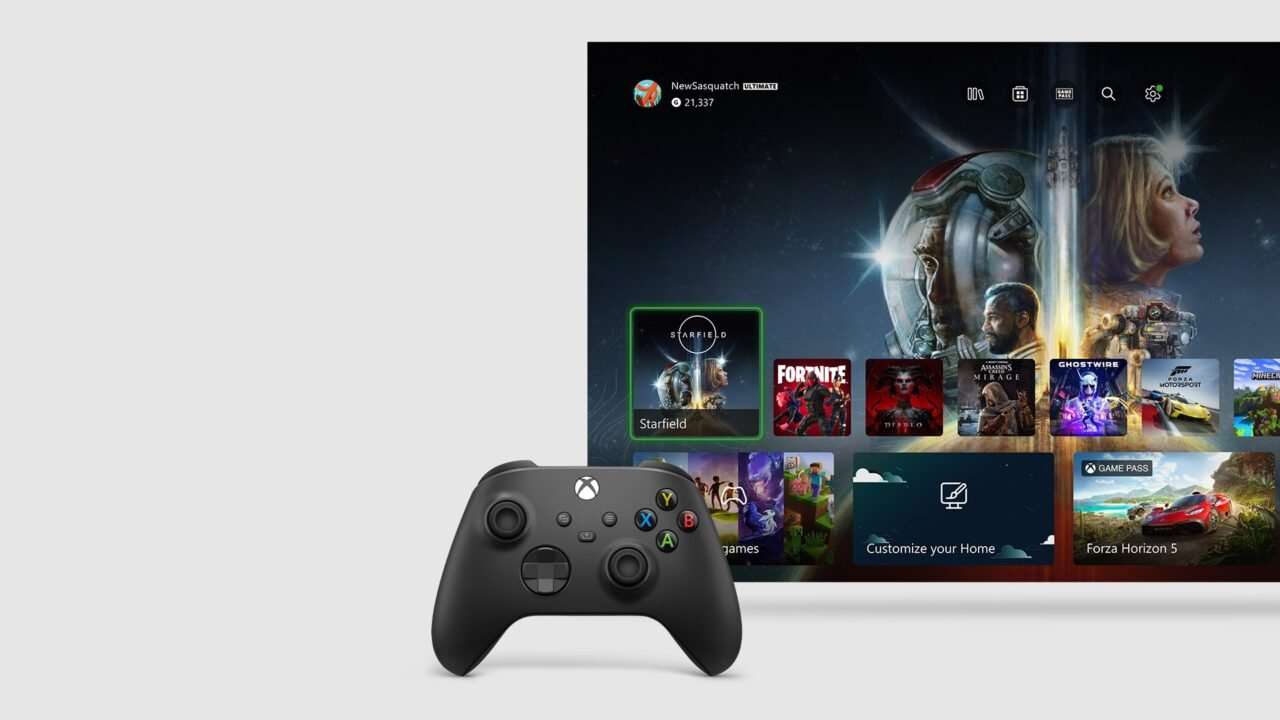
Your Xbox automatically backs up game saves to the cloud while you’re connected to the Xbox network. Since the August 2026 Xbox update, you can also restore an earlier cloud save directly from your console in supported games. Right now that’s Forza Horizon 6, with more games to follow in future updates. This guide covers how to restore an older save, how to check your saves are in sync, and what the common sync messages mean.
How to restore an older cloud save on Xbox
- Highlight Forza Horizon 6 on Home or in My games & apps.
- Press the Menu button and select Manage game & add-ons.
- Select Saved data > Restore saved data.
- Browse the cloud save versions available and choose the earlier save you want to restore.
If you don’t see Restore saved data for a game, it isn’t supported yet. Make sure your console is up to date, too. Our guide on how to update your Xbox covers that.
How to check your game saves are synced
Since the May 2026 update, the Game card shows whether your saves are syncing to the cloud, fully in sync, out of sync, or stuck on another device or offline.
- Highlight the game’s box art anywhere on your console, such as Home or My games & apps.
- Press the Menu button and select Game card.
- Highlight the game’s box art again to see the save status.
The August 2026 update also made the cloud save sync symbols in game hubs clearer.
Stay connected to keep saves in sync. You need to be connected to the Xbox network when you start a game to use cloud saves. If you’re not connected when you leave a game, the save won’t upload until you next connect. Playing offline can leave your cloud data out of date.
How cloud saves work
- Saves are stored on your console and in the cloud automatically while you’re connected. You don’t need an Xbox subscription.
- Sign in to another Xbox console with your profile and your saves are available there.
- Each game gets its own cloud storage, so your cloud storage grows with your library.
- Downloadable content and add-ons can’t be stored in the cloud.
Common sync messages and what to do
“Which one do you want to use?”
Your console has newer or different local data than the cloud, usually after playing offline. You’ll be told which is newer. Choose the save you want and carry on.
“Your previous device is still uploading your game save”
Another device hasn’t finished syncing. Select Quit Game to let it finish in the background, or Stop Sync & Continue to use the latest cloud save instead. If you made important progress on the other device, wait for the upload or go back to that device to finish it.
“You may have unsynced progress on a previous device…”
The previous device stopped uploading, perhaps after losing power, connection or being signed out. If the progress matters, go back to that device and fix the power, connection or sign-in. Otherwise, select Continue from last cloud data to load the most recent cloud save.
“Your other device is taking a long time to sync to the cloud”
Select Keep waiting and sign in on the other console to let it finish, or Sync last saved data to use the data on the console in front of you. You may lose unsynced data from the other console.
“We couldn’t sync your info with the cloud”
Your console can’t keep a good connection to the Xbox network. Select Play offline if it’s offered, then test your connection in Profile & system > Settings > General > Network settings > Test network connection.
“We can’t save additional info for…”
Your console has run out of space for saved games. Free up space by deleting saves you don’t need. See our guide on how to delete local saves on Xbox.
For the full list of messages, see Syncing Xbox game saves to the cloud error messages.