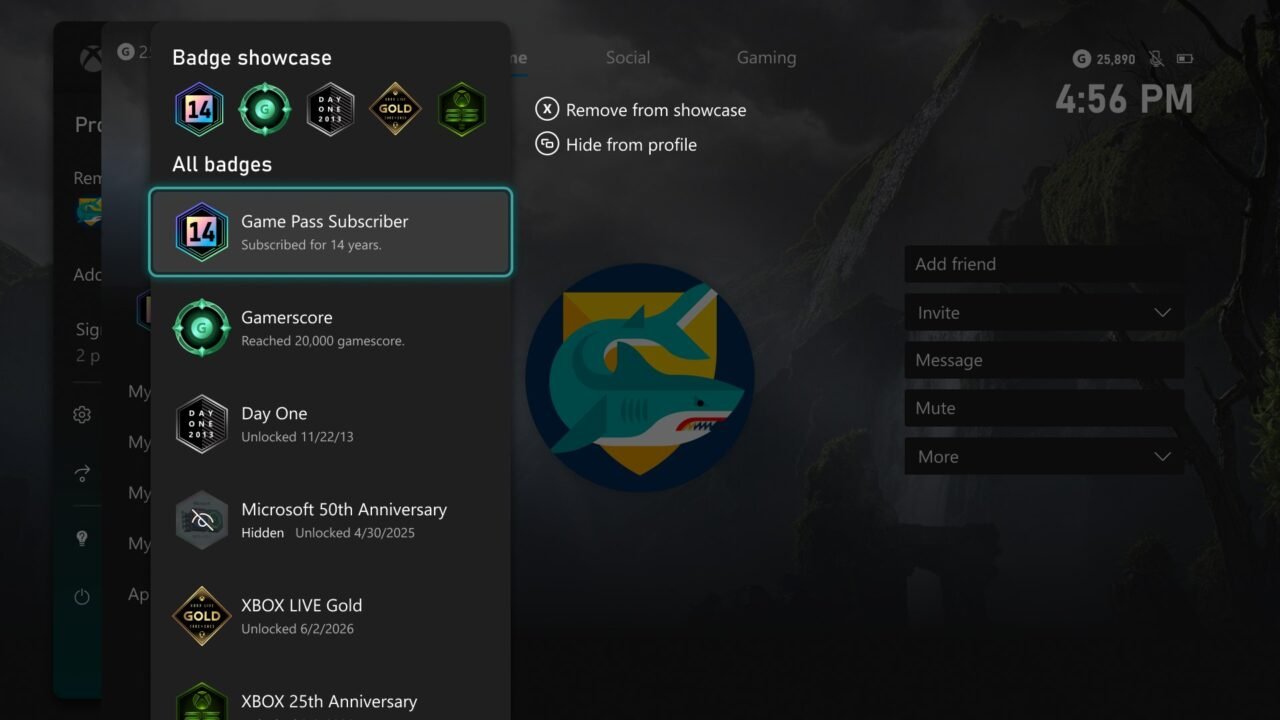
Profile badges sit on your Xbox profile card and tell the story of your time on Xbox, from Gamerscore milestones to subscription tenure and special events. Recent Xbox updates have added Gamerscore milestone badges, detailed badge information and a showcase you can arrange yourself. Here’s what the badges are and how to manage them on Xbox Series X|S and Xbox One.
What are Gamerscore milestone badges?
Since the June 2026 Xbox update, every profile with at least 1,000 Gamerscore shows a Gamerscore badge. It evolves as your Gamerscore goes up, with many levels between 1,000 and 10,000,000 Gamerscore.
The new Gaming tab on your profile, added in the October 2026 update, lets you track your next Gamerscore milestone badge alongside your achievements and completed games.
Other badges you might see
Badges cover longtime Xbox accomplishments and special community events. Examples shown in Xbox’s own screenshots include Game Pass Subscriber (with years subscribed), Gamerscore, Day One, Xbox Live Gold, Microsoft 50th Anniversary and Xbox 25th Anniversary.
- Day One: players who unlocked the Day One achievement when Xbox One launched on 22 November 2013 get a commemorative Day One profile badge.
- Xbox 25th Anniversary: see our 25th Anniversary profile badge guide for how that one works.
How to see badge details
Since the October 2026 update, you can view detailed information for every badge on a profile, including high-resolution artwork and when and how it was unlocked. This works on your own profile and on other players’ profiles.
- Press the Xbox button to open the guide and go to Profile & system.
- Select the row of badges under your gamertag to open your badge showcase.
- Highlight a badge to see what it is and when you unlocked it.
How to choose which badges to show
You can feature up to five badges in your profile card showcase, and hide individual badges from your public profile.
- Open your badge showcase as above. The top row shows your Badge showcase, with All badges listed below it.
- Highlight a badge in the list to add it to your showcase, or highlight one already in the showcase and press X to select Remove from showcase.
- To stop other players seeing a badge, highlight it and select Hide from profile with the View button.
Hidden badges are marked Hidden in your list.
Can’t find these options? Badge details and the five-badge showcase arrived with the October 2026 system update. Make sure your console is up to date with our guide on how to update your Xbox.
Where did the Rewards tab go?
The October 2026 update removed the Rewards tab from your profile. To get to Rewards from your profile now, use the My Rewards button on the Welcome tab.
Badge FAQ
My showcase order looks different on another device
During testing, Xbox listed a known issue where Game Pass Subscriber and Gamerscore badges might not appear in your chosen showcase order, or might not be hidden, on other device types or consoles. If you notice this, check that every console you use is up to date.
Can other people see my hidden badges?
No. Hiding a badge removes it from your public profile.
How do I get the next Gamerscore badge?
Keep earning Gamerscore by unlocking achievements. Your Gaming tab shows your next milestone. Our guide to Mythic Achievements explains the new completion rewards too.