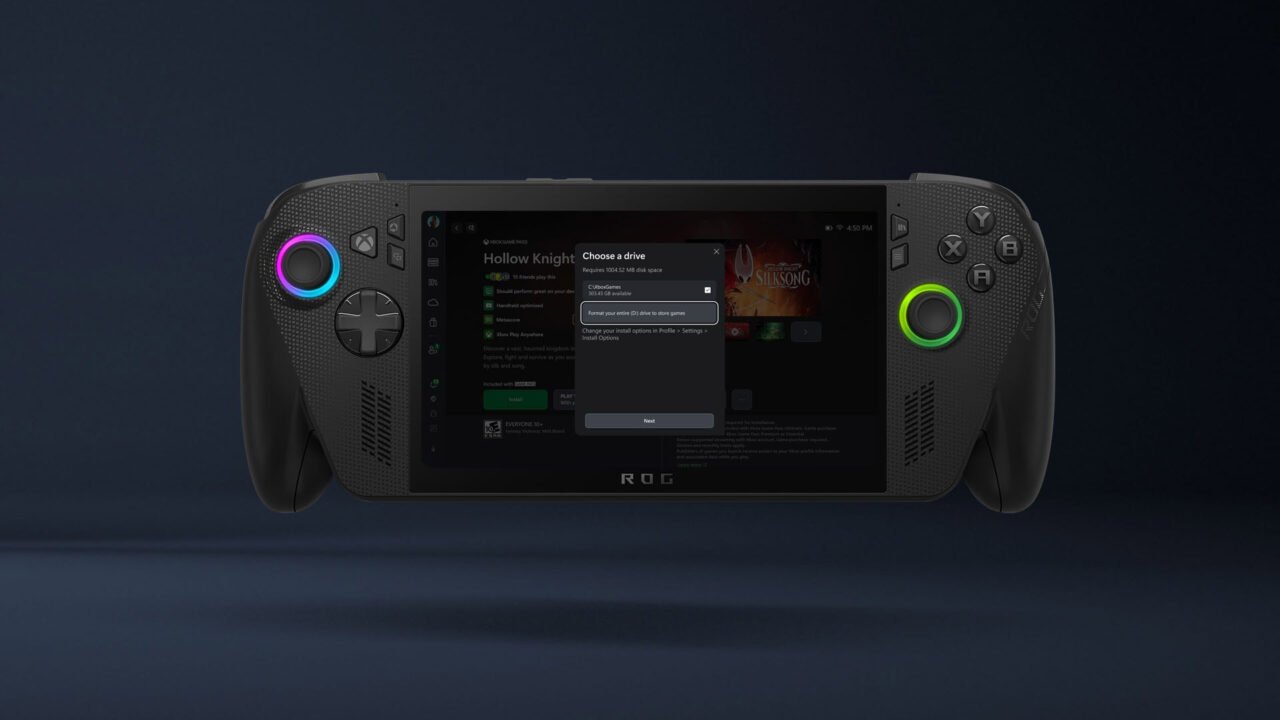
The ROG Xbox Ally and ROG Xbox Ally X are Windows 11 handhelds, so their updates come from three places. ASUS delivers drivers, BIOS and firmware through Armoury Crate SE. Windows Update handles Windows itself, and the Xbox app updates on its own. Here’s how to keep both handhelds up to date, and how to reset one to factory settings if you need to start again.
How to update your ROG Xbox Ally through Armoury Crate SE
Most of the important handheld updates, including drivers, BIOS and firmware, come through Armoury Crate SE.
- Press the Armoury Crate button on the left side of the handheld to open Command Centre.
- Select Open Armoury Crate SE.
- Go to the Settings tab and open Update Centre.
- Select Check for Updates and install everything in the list.
You can also set these updates to run automatically. ASUS also added update notifications to Command Centre in November 2025.
How to update Windows
- Exit Xbox mode if you’re in it: open the Xbox app and use the Xbox mode toggle in the title bar at the top.
- Select Start > Settings > Windows Update.
- Select Check for updates.
- If updates are available, select Download & install, then restart when prompted.
Some ROG Xbox Ally firmware, such as power delivery and touch panel firmware, has arrived through Windows Update rather than Armoury Crate SE, so it’s worth checking both.
What’s in each update? Xbox Support keeps a running list of ROG Xbox Ally updates, covering the Xbox app, Game Bar, Armoury Crate SE, AMD drivers and Windows: What’s new: ROG Xbox Ally and ROG Xbox Ally X updates.
How to factory reset a ROG Xbox Ally
Resetting reinstalls Windows. Depending on the option you choose, it can remove your apps, settings and personal files, so back up anything important first. If your device is encrypted, make sure you have your BitLocker recovery key.
- Open Settings and select System > Recovery.
- Under Recovery options, select Reset PC.
- Choose Keep my files to reinstall Windows but keep your personal files, or Remove everything for a completely fresh start, such as before selling the handheld.
- Choose Cloud download to get a fresh copy of Windows with the latest updates, or Local reinstall to use the files already on the device.
- Follow the on-screen instructions.
The screen can stay black for a long time during a reset, sometimes more than 15 minutes, and the device may restart itself. Don’t restart it manually, as that could make the reset fail. Full details are in Microsoft’s Reset your PC guide.
If Windows won’t start
You can also reset from the Windows Recovery Environment: select Troubleshoot > Reset this PC and pick the same options. ASUS also offers Cloud Recovery within MyASUS in WinRE. It downloads the operating system from the cloud and restores the drive to its factory state, erasing all data. It needs a Wi-Fi or wired network and mains power, and can take one to three hours.
FAQ
How do I get into the BIOS?
Hold volume down (-) while pressing the power button until the BIOS screen appears. From Windows, you can also go to Settings > Recovery > Advanced startup > Restart now, then choose Troubleshoot > Advanced options > UEFI Firmware Settings.
Who do I contact about a hardware fault?
ASUS supports the hardware, including buttons, thumbsticks and bumpers. Xbox Support covers Xbox software and Game Pass.
Where can I read about upscaling on ROG Xbox Ally?
See our look at AMD FSR 4.1 on ROG Xbox Ally.