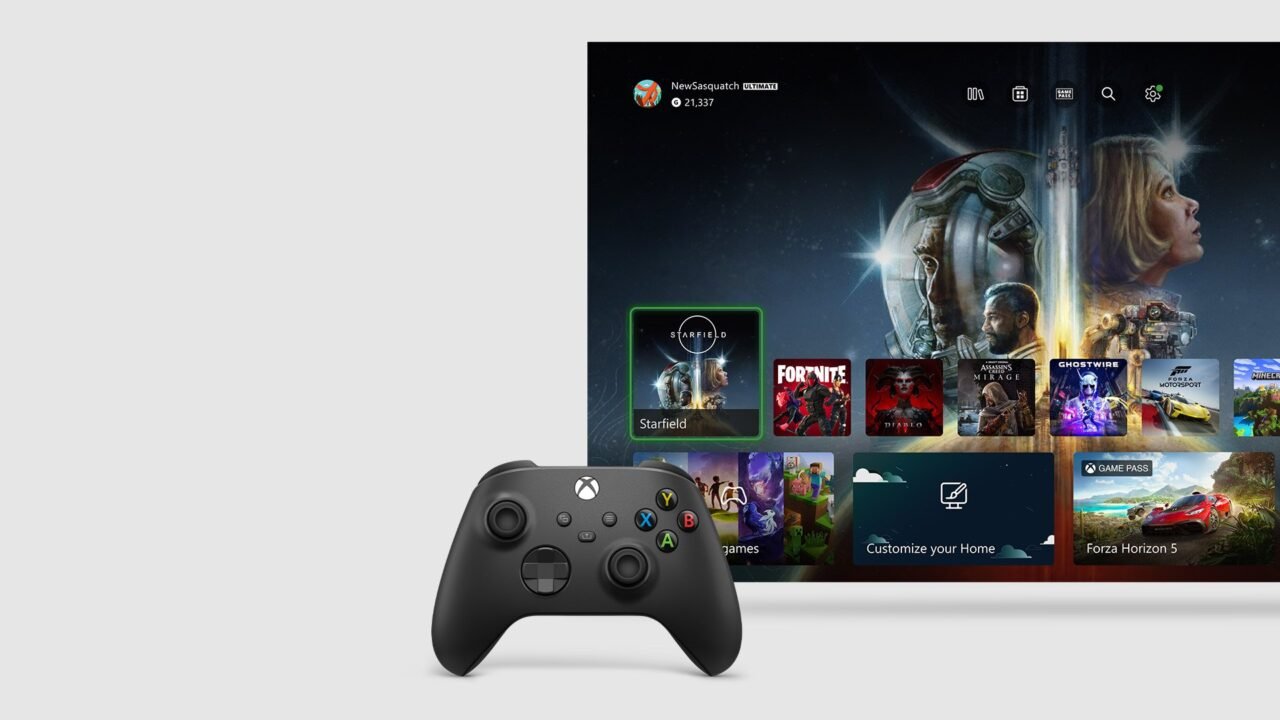
Quick Resume on Xbox Series X|S lets you jump back into a game right where you left off. When you switch from one game to another, the console saves the state of the game you were playing, then loads it again next time. It’s handy, but some games are better launched fresh. Since the April 2026 Xbox update, you can turn Quick Resume off for individual games.
How to turn off Quick Resume for a game
- Highlight the game’s box art anywhere on your console, such as Home, My games & apps or Pins.
- Press the Menu button on your controller.
- Go to Manage game and add-ons > Quick Resume settings.
- Select Disable Quick Resume.
That game will now launch fresh each time. To turn Quick Resume back on, follow the same steps and change the setting in Quick Resume settings.
There’s no single setting to turn Quick Resume off for every game at once. It’s set per game.
Not seeing Quick Resume settings? The per-game setting arrived with the April 2026 system update. Make sure your console is up to date. Our guide on how to update your Xbox walks you through it.
How to find your Quick Resume games
- Press the Xbox button to open the guide, then go to My games & apps.
- Select See all.
- Select Groups and look in the Quick Resume group.
Only games with an active Quick Resume state appear in this group. A game that supports Quick Resume but that you haven’t played yet won’t be there. If the game you’re playing is a Quick Resume game, you’ll also see Quick Resume in the upper right corner of the screen when you open the guide.
How to pin a game to Quick Resume
You can pin up to two games so they stay in Quick Resume whatever else you launch.
- Go to My games & apps > Groups > Quick Resume.
- Highlight the game and press the Menu button.
- Select Pin to Quick Resume.
If you already have two pinned games, select Pin to Quick Resume on a new game and you’ll be asked which of the other two to replace.
Quick Resume FAQ
How many games can be in Quick Resume at once?
Xbox Series X|S can store three Quick Resume states for full-memory Xbox Series X|S games. Xbox One, Xbox 360 and original Xbox games use less memory, so more of those can be stored.
Does Quick Resume work with online games?
Yes, but some games won’t resume properly. Online, service-based games may send you to the game’s menu instead of where you left off. These are good candidates for turning Quick Resume off.
Will I lose progress if a Quick Resume state is lost?
You’ll lose any unsaved progress, much like restarting a console while a game is running. The game will load normally next time and pick up your last save from the cloud, so it’s a good idea to save before switching to something else.
What happens if I play on a friend’s console?
There’s only one Quick Resume save per game per console. If you launch a game on a friend’s console that already has a Quick Resume state, you can launch anyway, but it will replace their Quick Resume.
Does Quick Resume use storage or slow down my console?
No. Quick Resume states don’t change how much storage your games and apps use, and suspended games aren’t running, so they don’t affect performance.
Can I see a list of every game with a Quick Resume state?
Not at the moment. The Quick Resume group in My games & apps is the closest thing.
Does Quick Resume work with apps?
No. Quick Resume is built for games only.
For more detail, see Get back to your game instantly with Quick Resume.