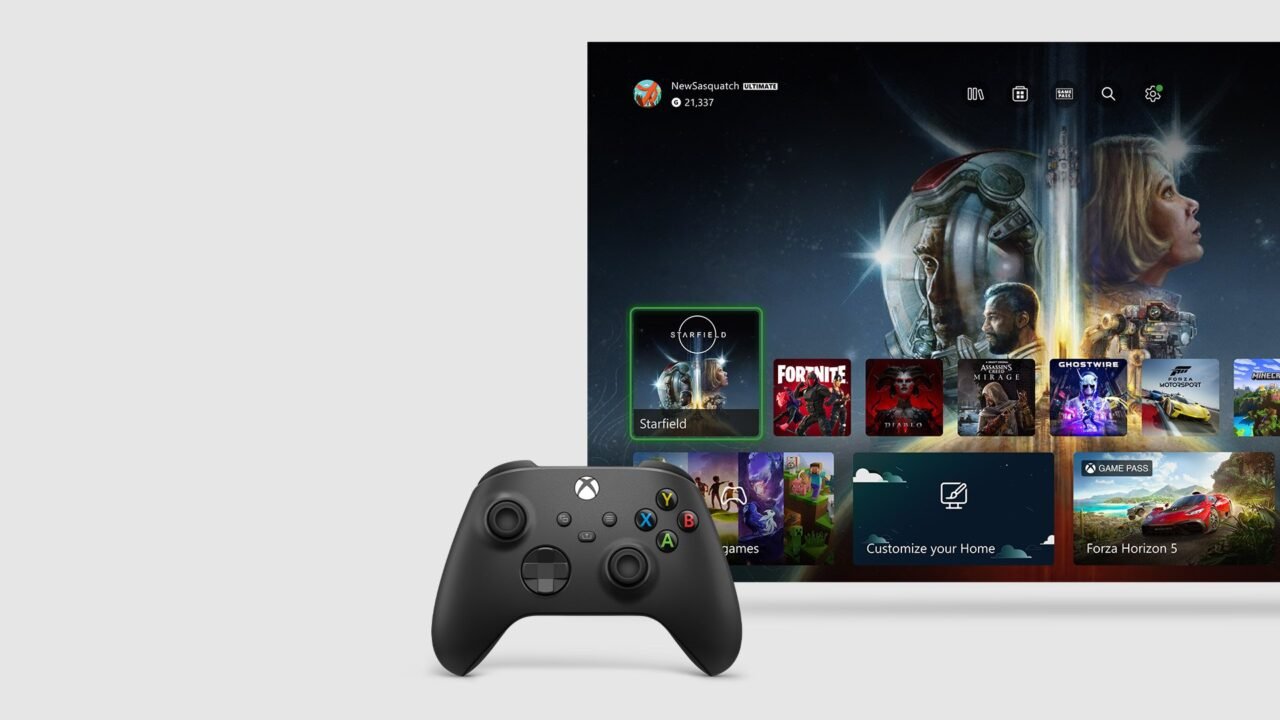
Moving from Xbox One to Xbox Series X|S is mostly automatic. Sign in to your new console with the same Microsoft account and your profile, subscriptions and digital games come with you, while your game saves follow through the cloud. To avoid downloading everything again, you can also copy installed games across your home network or with an external drive. Here’s how.
What moves automatically when you sign in
- Games and apps: most of them. Go to My games & apps > Full library > Owned games to find them.
- Your profile: most of it, including your gamertag, Gamerscore, achievements and friends.
- Account info: all your subscriptions, such as Game Pass Ultimate, and your payment options.
- Family and privacy settings: family relationships are linked to your Microsoft account, so you won’t need to create child accounts again.
- Films and TV bought through the Microsoft Movies & TV app.
How your game saves move
To carry on a game you started on Xbox One, make sure it’s saved to the cloud. Saves upload automatically while your Xbox One is connected to the Xbox network, so turn it on and connect it before you switch. When you play the game on Xbox Series X|S, you’ll pick up where you left off.
Bring your settings too. On your Xbox One, connect a USB drive (USB 3.0 or faster, 128 GB or larger, formatted for Xbox) and go to Profile & system > Settings > System > Back up & transfer > Back up my settings. Plug the drive into your new Xbox before you turn it on for the first time, then follow the on-screen instructions.
Option 1: Copy games over your home network
Network transfer copies installed games and apps from one console to another on the same home network. This can be faster than downloading them again.
- On your Xbox One, press the Xbox button and go to Profile & system > Settings > System > Back up & transfer > Network transfer.
- Tick Allow network transfer.
- On your Xbox Series X|S, go to the same settings page. Your Xbox One should appear in the list.
- Select it, choose the games and apps you want, then select Copy selected.
For the transfer to work, both consoles need to be on the same local network (a guest or public network isn’t recommended). Your Xbox One needs to be switched on, not playing a game, and not downloading or updating anything. Setting it to Sleep in its power options helps.
Option 2: Move games with an external drive
If your Xbox One games are on an external drive, just unplug it and plug it into your Xbox Series X|S. To move games from the Xbox One’s internal storage:
- Connect an external drive (USB 3.0 or faster, 128 GB or larger, formatted for Xbox) to your Xbox One.
- Go to Profile & system > Settings > System > Storage devices.
- Select the internal drive, then Move or copy.
- Choose Select all or tick the games you want, then select Copy selected or Move selected.
- Plug the drive into your Xbox Series X|S.
Games marked Optimised for Xbox Series X|S must be installed on the console’s internal SSD or a Storage Expansion Card to play. You can keep them on a USB drive and move them back when you want to play.
What doesn’t move
- Kinect games: the Kinect sensor isn’t compatible with Xbox Series X|S.
- Some games, saves and apps: saves that weren’t synced to the cloud stay on the old console.
FAQ
Should I make my new console my home Xbox?
If the Series X|S will be your main console, Xbox suggests setting it as your home Xbox. See our game sharing guide for how.
Do my disc games work?
Xbox Series X|S is backward compatible with thousands of games across four generations of Xbox, including disc-based games. Xbox Series S has no disc drive. For details, see Moving from Xbox One to Xbox Series X|S. For an older cloud save, see how to restore an older cloud save.