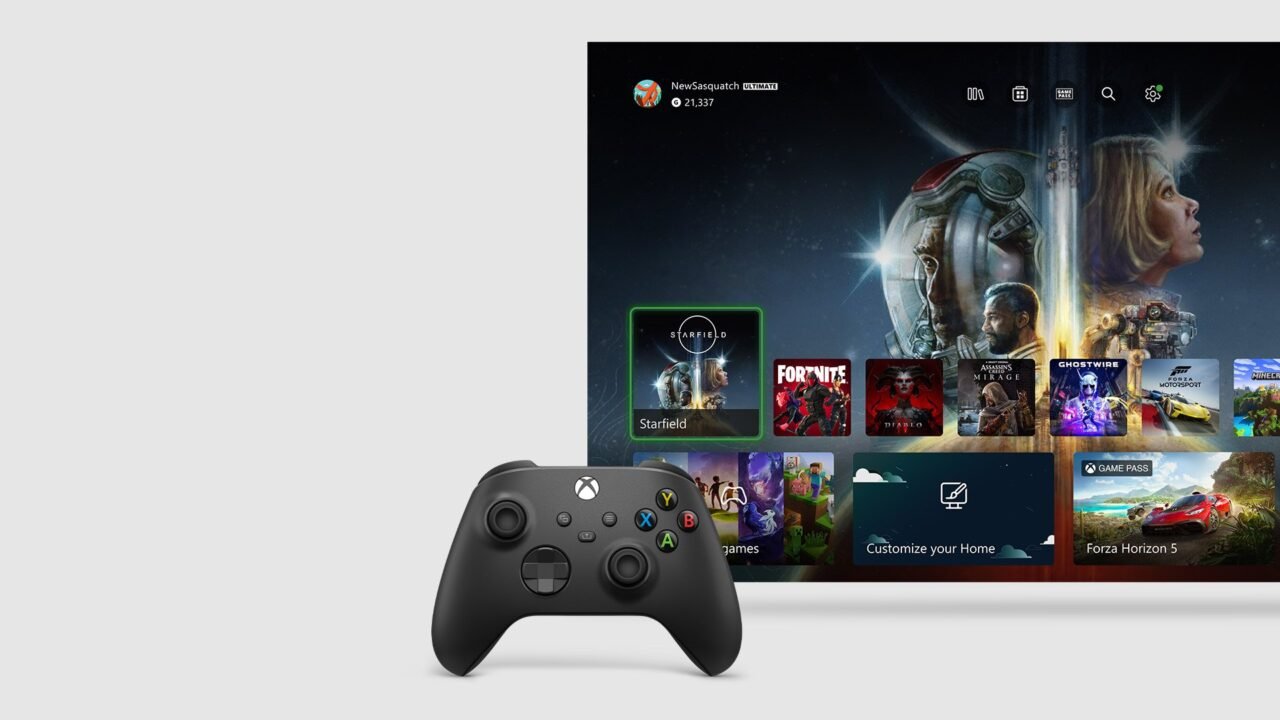
Whether you are streaming Game Pass hits on a Samsung TV with an Xbox Nano Controller, a phone on the train, or an older Xbox One, nothing ruins a session faster than input lag, pixelated compression, or a ten minute queue. Unlike local downloads, cloud streaming depends on steady latency and packet stability from end to end. Here are the fastest fixes that actually improve Xbox Cloud Gaming performance.
1. Switch to 5 GHz Wi-Fi or Wired Ethernet
Xbox Cloud Gaming is far more sensitive to packet loss and jitter than raw download speed. You do not need gigabit fibre to stream cleanly, yet a noisy 2.4 GHz Wi-Fi connection will cause constant stutters and audio crackle. Switching your phone, handheld, or TV onto a 5 GHz Wi-Fi band, or plugging directly into wired Ethernet on a PC, console, or smart TV, immediately cuts input delay and visual macroblocking.
2. Use Microsoft Edge Clarity Boost or the Official Xbox App
If you are streaming on Windows PC, Mac, or a PC handheld, browser choice makes a real difference. Microsoft Edge includes Clarity Boost, an upscaling filter that sharpens compressed video streams noticeably compared to older browser builds. On Windows 11, the official Xbox PC app also handles controller polling cleanly without browser tab overhead. While playing, pause background game downloads, cloud photo backups, and 4K video streams on other devices sharing your router.
3. Check Controller Pairing and Bluetooth Interference
Sometimes what feels like network lag is actually Bluetooth latency between your controller and your TV or tablet. Updating your Xbox Wireless Controller firmware through the Xbox Accessories app and keeping wireless dongles or phones away from crowded USB 3.0 hubs can shave noticeable milliseconds off every button press.
4. Beat Peak Hour Queues
Long wait times usually spike between 6 PM and 10 PM local time, especially right after major Game Pass Wave drops or big seasonal updates like Fortnite events. Game Pass Ultimate members receive priority server access over lower tiers, and if a queue freezes or stretches past five minutes, backing out and relaunching occasionally routes you to a less congested server blade.
Our Take
Most Xbox Cloud Gaming stutters come down to home Wi-Fi interference rather than Microsoft’s servers. Five minutes spent forcing your TV or handheld onto 5 GHz Wi-Fi and enabling Clarity Boost usually makes Cloud Gaming feel twice as responsive.