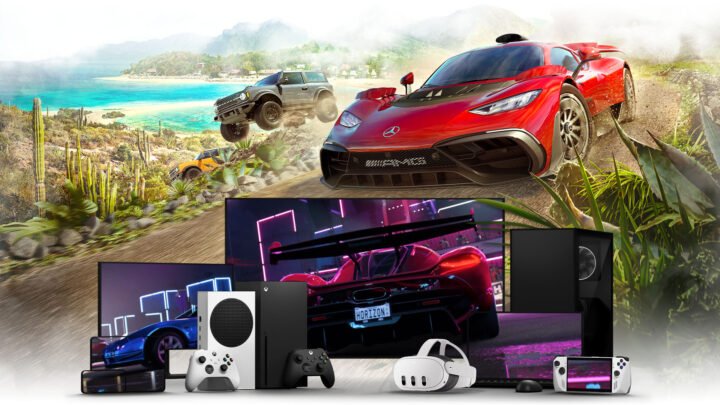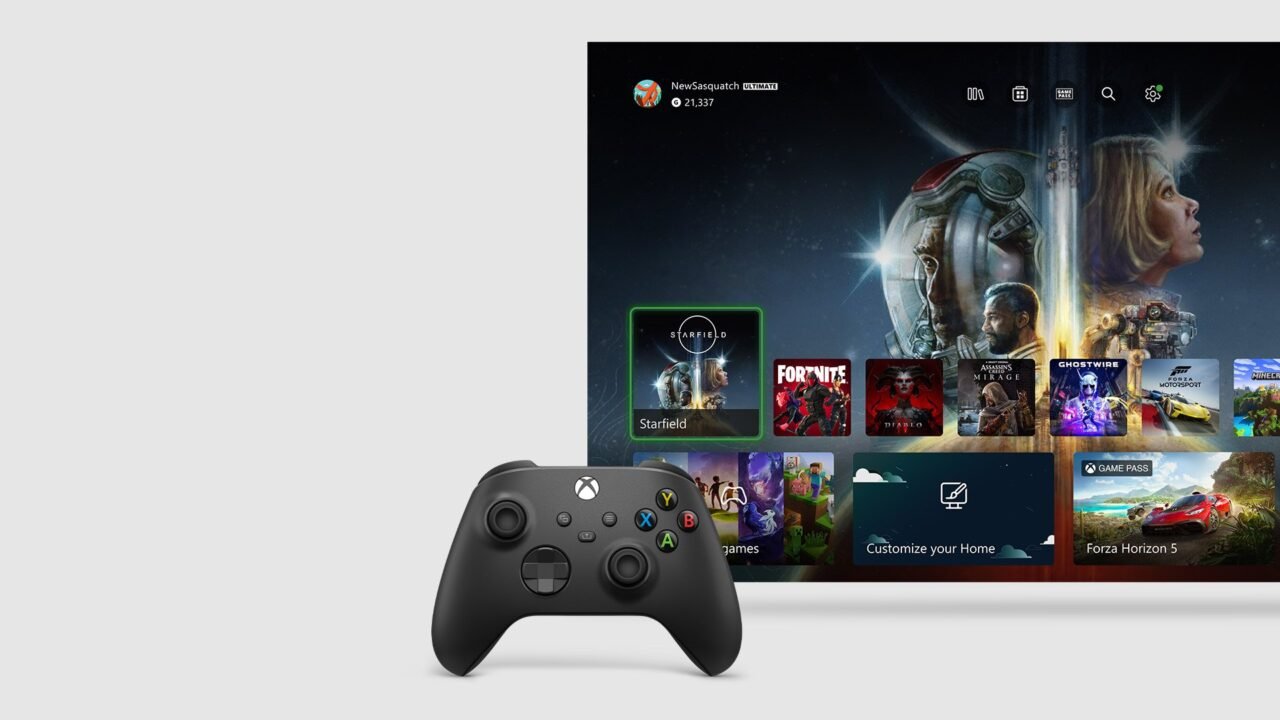
If Xbox Cloud Gaming won’t load a game, stutters, shows a black screen or doesn’t respond to your controller, the fix usually comes down to your network, your browser or app, or how your controller is connected. Here are the official fixes to work through, whether you play on a Windows PC, in a browser, on your Xbox console or on a phone or tablet.
Before you start
- Cloud gaming is only available in some countries and regions. Check the “Xbox Cloud Gaming” entry on the Xbox supported countries/regions page.
- Check the Xbox status page for a service problem.
- Cloud gaming doesn’t support local multiplayer. It supports one player and one account at a time.
Fix lag, stuttering and poor picture or sound
Xbox Support says most audio and video problems in cloud gaming come from the network connection. Try these:
- Use a wired Ethernet connection if you can. On Wi-Fi, connect to a 5 GHz network rather than 2.4 GHz.
- Avoid mobile hotspots, Wi-Fi extenders, VPNs and custom DNS settings, which can add latency.
- Pause video streaming or online gaming on other devices on the same network.
- Play on a single display, and don’t cast to another screen.
- In a browser, close other tabs and apps, or restart the browser and use just one tab.
- On a laptop, plug it in and set the power mode to Best performance.
- Restart your device and try again.
See what’s going wrong. In the Xbox app on Windows PC, go to your profile picture > Settings > Cloud Gaming and turn on Stream statistics overlay. Xbox suggests a ping below 80 ms, jitter below 20 ms, decode below 12 ms and 0% packet loss.
Fix a black screen when a game launches
If you get a blank or black screen after the cloud gaming loading animation on a Windows PC:
- Check for updates to the Xbox app.
- Disconnect from your network, reconnect, then launch the game again.
Playing in a browser? Make sure you’re using one of the supported browsers for cloud gaming. On an Arm-based Windows device, Xbox recommends Microsoft Edge for Xbox.com/play.
Fix controller problems
- Use a supported controller. Official Xbox and Designed for Xbox controllers work best. In a web browser, the Xbox Wireless Controller is the only officially supported controller. On an Xbox console, any controller that works with your console works for cloud gaming.
- Controller not detected after sleep? On a Windows PC, press the Xbox button on your controller to turn it back on, or unplug it and plug it back in.
- Update the controller. Install the latest firmware. For an Xbox Wireless Controller, see Update your Xbox Wireless Controller.
- Try a USB cable. Some controllers can connect by cable instead of Bluetooth. Plug the cable into your device and then your controller.
- Sticks, triggers or D-pad not responding on a phone? On some phones, auto-rotate and accessibility settings can stop controller input. Turning them off may fix it.
- Xbox button takes you to your phone’s home screen? Use the on-screen Xbox button in the centre of the game screen instead.
On an Xbox console, see My Xbox controller won’t connect or turn on. The full list of tested controllers is on Controllers for Xbox Cloud Gaming.
Headset and party chat problems
- If your controller is connected by Bluetooth, headsets plugged into the controller aren’t supported. Connect the headset directly to your device.
- For party audio, plug a wired headset into your device, not your controller, to cut background noise.
- If others can’t hear you, select the More actions button (…) in the game and check that you’re not muted.
FAQ
Does cloud gaming support HDR?
No. HDR video isn’t currently supported for cloud gaming, so games may report that HDR isn’t supported.
Can I change the stream resolution?
Yes, on supported devices. See how to change Xbox Cloud Gaming resolution. To check how much time you’ve got left to play, see our Xbox Cloud Gaming playtime guide.