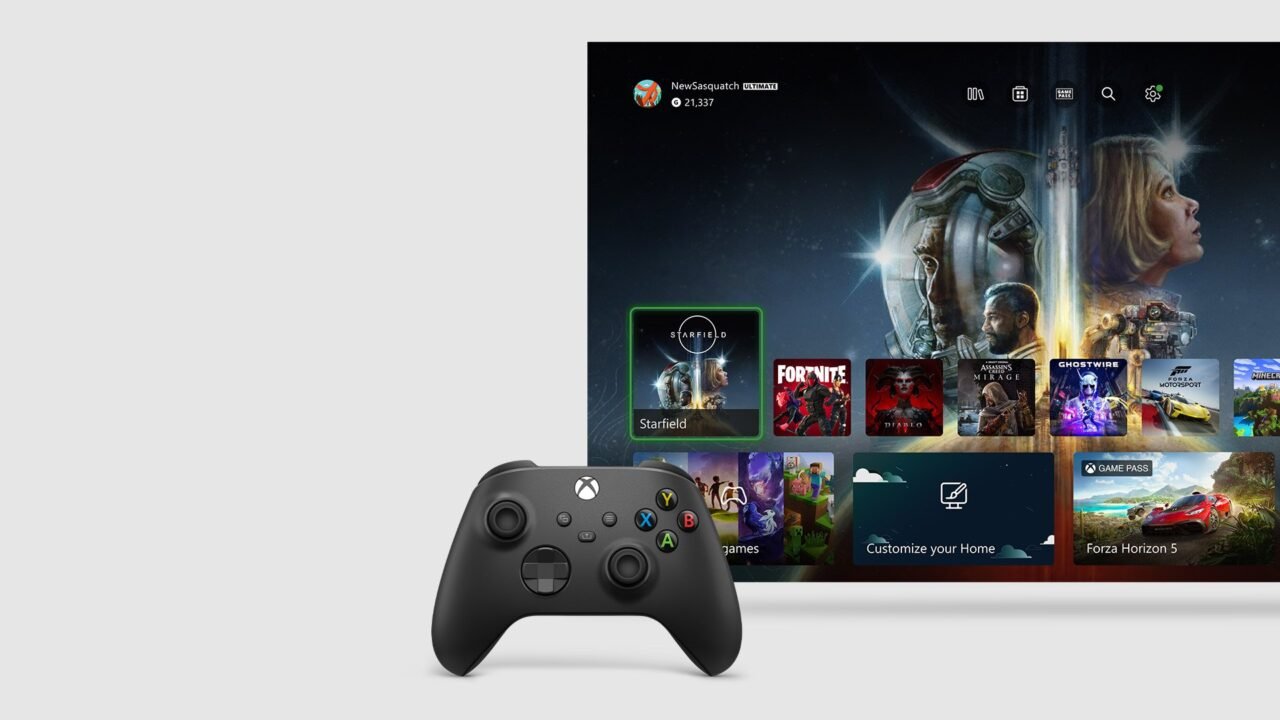
Xbox gamertags can be up to 15 characters long again. Since the July 2026 Xbox update, you can claim a unique gamertag of up to 15 characters, up from the previous 12-character limit. There are a few rules about which gamertags qualify, and your first change is free. Here’s how it works and how to change your gamertag on the web or on your console.
Which gamertags can be 15 characters?
- Gamertags can be up to 15 characters long, including spaces.
- A gamertag that’s 13 characters or longer must be unique, and can contain only Latin alphanumeric characters (letters and numbers) with no special characters.
- Gamertags can’t start with a number.
- If the gamertag you want is already taken, or uses non-Latin characters, it gets a numbered suffix and is limited to 12 characters.
Xbox keeps three characters back for the suffix, which is why non-unique and non-Latin gamertags stop at 12. Only gamertags made with Latin-based alphabets can be new gamertags without a suffix.
Your first change is free. If you’ve never changed your gamertag before, you can change it once for free, even if Xbox created it for you automatically. After that, every change costs a fee, which varies by region and currency. If you change an existing gamertag, you may lose it to someone else.
How to change your gamertag on Xbox Series X|S or Xbox One
- Press the Xbox button to open the guide, then go to Profile & system.
- Select your Xbox profile, or select Choose a profile and sign in.
- Select My full profile > Customise profile, then select your current gamertag.
- Under Choose your new gamertag, enter the gamertag you want and select Check availability.
- Review how your gamertag will look across Xbox services.
- If you’re happy with it, select Change gamertag.
How to change your gamertag on the web
- Sign in on xbox.com with the Microsoft account email address and password linked to your Xbox profile.
- Select Play in the navigation bar.
- Select your gamerpic in the top right, then select View full profile.
- Select the edit icon next to your gamertag. You can also go to Settings > Account > Change gamertag.
- Enter the gamertag you want, or select Randomize to generate an available one.
- Review how it will look across Xbox services.
- Select Change gamertag.
Once you confirm, the change shows across Xbox. Your friends’ lists update automatically, so you don’t need to tell anyone.
How gamertag suffixes work
- A suffix is a number added after a # symbol, assigned automatically by Xbox. You can’t choose your own.
- Suffixes show everywhere except in friends lists. Friends can still see your suffix by checking your profile.
- Suffixes are 4 digits by default, but the length depends on the gamertag. A 12-character gamertag is limited to a 3-digit suffix, an 11-character one to 4 digits, and so on.
- If your existing gamertag doesn’t have a suffix, it stays that way. Nobody else can have exactly the same gamertag without a suffix.
Gamertag FAQ
It says my gamertag is unavailable
You’ll need to try another. An unavailable gamertag is either inappropriate for Xbox or can’t be used right now. Every gamertag must follow the Community Standards for Xbox.
Do I need to change my existing gamertag?
No. Existing gamertags stay as they are, with no suffix. You only need to do anything if you want a new one.
Why does my gamertag look different in some games?
Some older games, particularly those released in 2020 or earlier, still use the older gamertag system, so your gamertag may look different there.
Can I change my gamertag on Xbox 360?
No, changing your gamertag on Xbox 360 isn’t available.
For more detail, see How to change your Xbox gamertag and the Xbox gamertag FAQ.